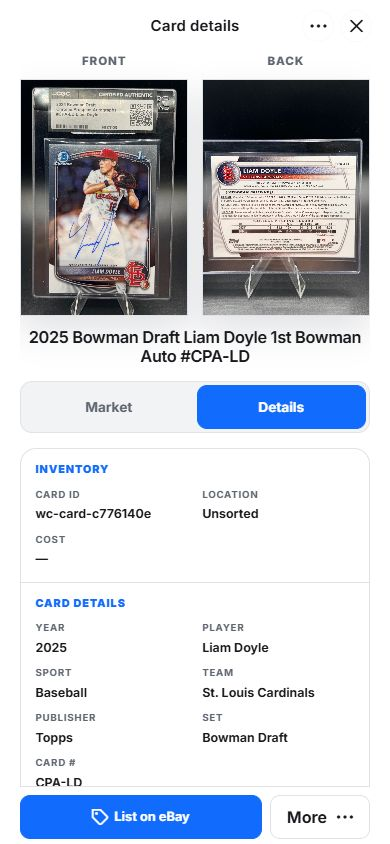
Capture the card cleanly
- 1
Open Scan
Mobile appScanCardUse the mobile Scan tab when cards are physically in front of you.
- 2
Choose Sports
SportsSports mode focuses the review around player, team, sport, year, set, card number, variant, rookie, autograph, memorabilia, and grading details.
- 3
Capture the front and back when needed
Front + BackBack photos are useful for card numbers, copyright year, set details, and buyer confidence if the card will be listed later.
Clean up the saved record
- Confirm the player, year, set, card number, variant, team, and sport.
- Add rookie, autograph, memorabilia, serial, grade, or cert information when relevant.
- Set condition, cost, manual price, or notes when you know them.
- Save into the correct box so search and QR retrieval work later.
Use scanning with desktop cleanup
A practical workflow is mobile for capture and desktop for cleanup. Scan a run of cards near the box, then use the desktop Collection table to sort, filter, and, batch edit, export, or prepare seller work.
FAQ
Can I scan slabs?
Wax Cache includes slab-oriented fields such as grader, grade, and cert where they apply. Always review certification details manually before relying on them.
What makes a sports card scan searchable?
Player, year, set, card number, variant, sport, team, condition, grade, location, box, and notes all help make a sports card record easier to retrieve.