Choose the right scan mode
- 1
Open Scan
Mobile appScanCardUse the mobile Scan tab when you are adding a new card. QR mode is for scanning Wax Cache labels.
- 2
Select TCG
TCGTCG mode tunes the review fields for character, game, publisher, set, language, card number, rarity, and edition-oriented details.
- 3
Pick Front or Front + Back
FrontFront + BackFront-only is faster when the front has enough detail. Front + Back is better when the back carries set, copyright, language, or card-number clues.
Review before saving
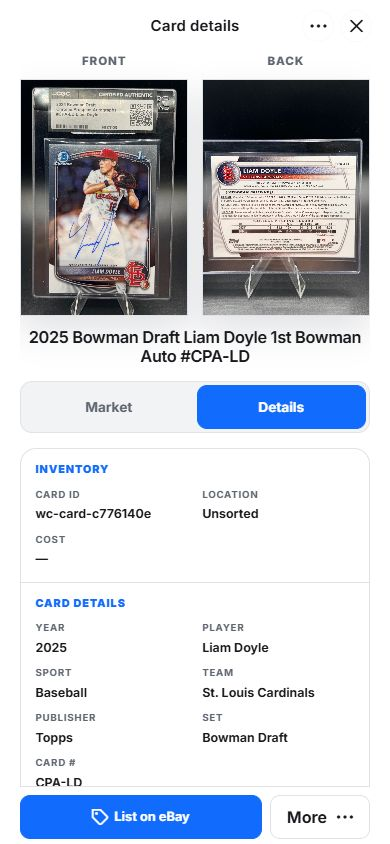
Scanning is an input shortcut, not a substitute for review. Treat the draft as a starting point and clean up fields while the physical card is still in front of you.
- Confirm character, game, set, card number, rarity, language, and variant.
- Choose the destination location and box before saving.
- Add condition, quantity, cost, value, and notes when they matter.
- Save only after the card would be findable by search later.
When to use upload instead of camera
Upload is useful when browser camera access is blocked, when you already have high-quality card images, or when you want a controlled scan example. The same review rules apply after the image is attached.
FAQ
Can I scan Pokemon and other TCG cards?
Yes. Wax Cache supports TCG-oriented scan fields for games such as Pokemon, Magic, Yu-Gi-Oh!, One Piece, and other trading card categories where character, game, set, number, rarity, and edition matter.
Should I scan the card back?
Use Front + Back when the back helps confirm card number, set, language, copyright year, or other details. Use Front only when the front has enough information and you want a faster workflow.